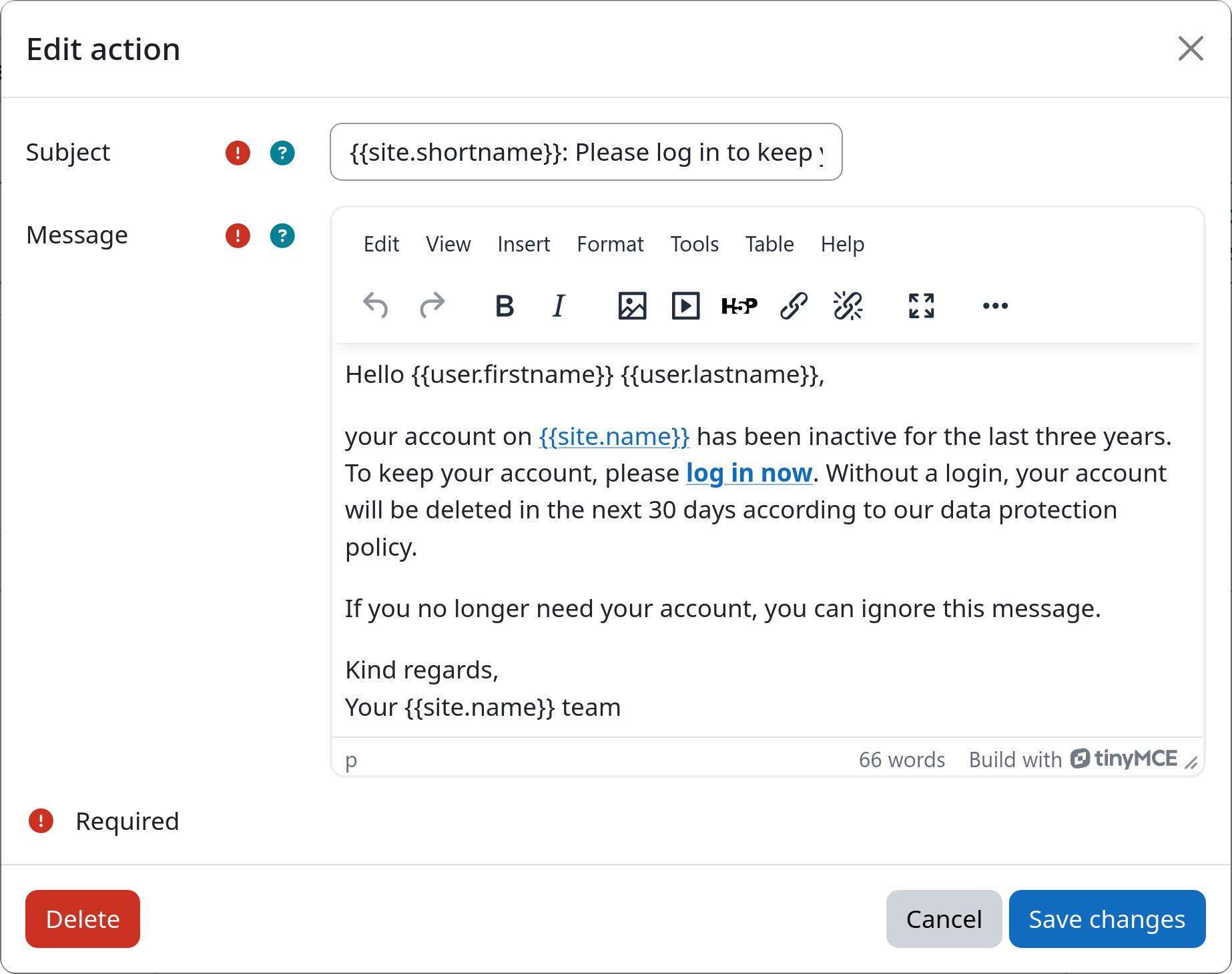
Action: Send Mail
The send mail action emails users, site administrators, or a custom defined mail address, when they enter a workflow step. Mail subject and body can be fully customized and allow the use of various dynamic variables. This action can be used for notifications, reminders, and warnings before subsequent lifecycle actions are executed.
Dynamic variables
This action allows you to use various dynamic variables in both the subject and body of the email. These variables will
be automatically replaced with the corresponding information when the email is sent. All variables must always be
enclosed in double curly braces ({{ and }}) to be recognized as placeholders.
The following variables are available:
User information
{{user.id}}– User's numeric ID{{user.username}}– Username{{user.firstname}}– First name{{user.lastname}}– Last name{{user.email}}– Email address{{user.idnumber}}– User's ID number{{user.institution}}– Institution{{user.timecreated}}– Account creation date and time{{user.lastaccess}}– Last access date and time{{user.lastaccessrelative}}– Relative time since last access{{user.lastip}}– Last IP address{{user.city}}– City{{user.country}}– Country code
Moodle site information
{{site.name}}– Site full name{{site.shortname}}– Site short name{{site.supportemail}}– Site support email address
URLs to various relevant pages on the Moodle site
{{urls.home}}– Site base URL{{urls.login}}– Login page URL{{urls.profile}}– Target user profile URL{{urls.support}}– Contact site support URL
Settings
Recipient
Determines who receives the email. The following options are available:
- User – the email is delivered to the user referenced by the workflow process.
- Site administrators – the email is delivered to every Moodle site administrator.
- Custom address – the email is delivered to the address configured in the "Custom recipient address" field.
Subject
Defines the email subject line. You can use plain text and placeholders for dynamic variables (see above).
Message
Defines the email body. You can use rich text (Moodle editor) and placeholders for dynamic variables (see above).
Custom recipient address
Only required when Recipient is set to "Custom address". Accepts a single RFC-compliant email address.
Example